Schedule social media posts from ChatGPT
Add Optimate to ChatGPT and the posts you write in a chat go out to LinkedIn, Instagram, Facebook, X, YouTube, Pinterest, Threads, Google Business, Bluesky and Mastodon, on the day and time you choose. Every one lands on your Optimate calendar, where you can see the whole week and move anything.
No card needed · moves to Free after 14 days
ChatGPT posts to 10 platforms through Optimate: LinkedIn, Instagram, Facebook, X, YouTube, Pinterest, Threads, Google Business, Bluesky and Mastodon.
Why ChatGPT alone isn't enough
It writes, but it can't post
ChatGPT can draft a caption, then you copy it into each app, one platform at a time.
No calendar
A chat has no idea what you've already scheduled this week, so posts double up or leave gaps.
It doesn't know your numbers
Without your own results it can't tell you which posts work or when your audience is online.
What Optimate adds to ChatGPT
The plugin signs ChatGPT in to your own Optimate account, so it can see your calendar, your brand and your results, and schedule posts for you once you say yes.
Schedule to 10 platforms
Schedule for later or publish now to LinkedIn, Instagram, Facebook, X, YouTube, Pinterest, Threads, Google Business, Bluesky and Mastodon.
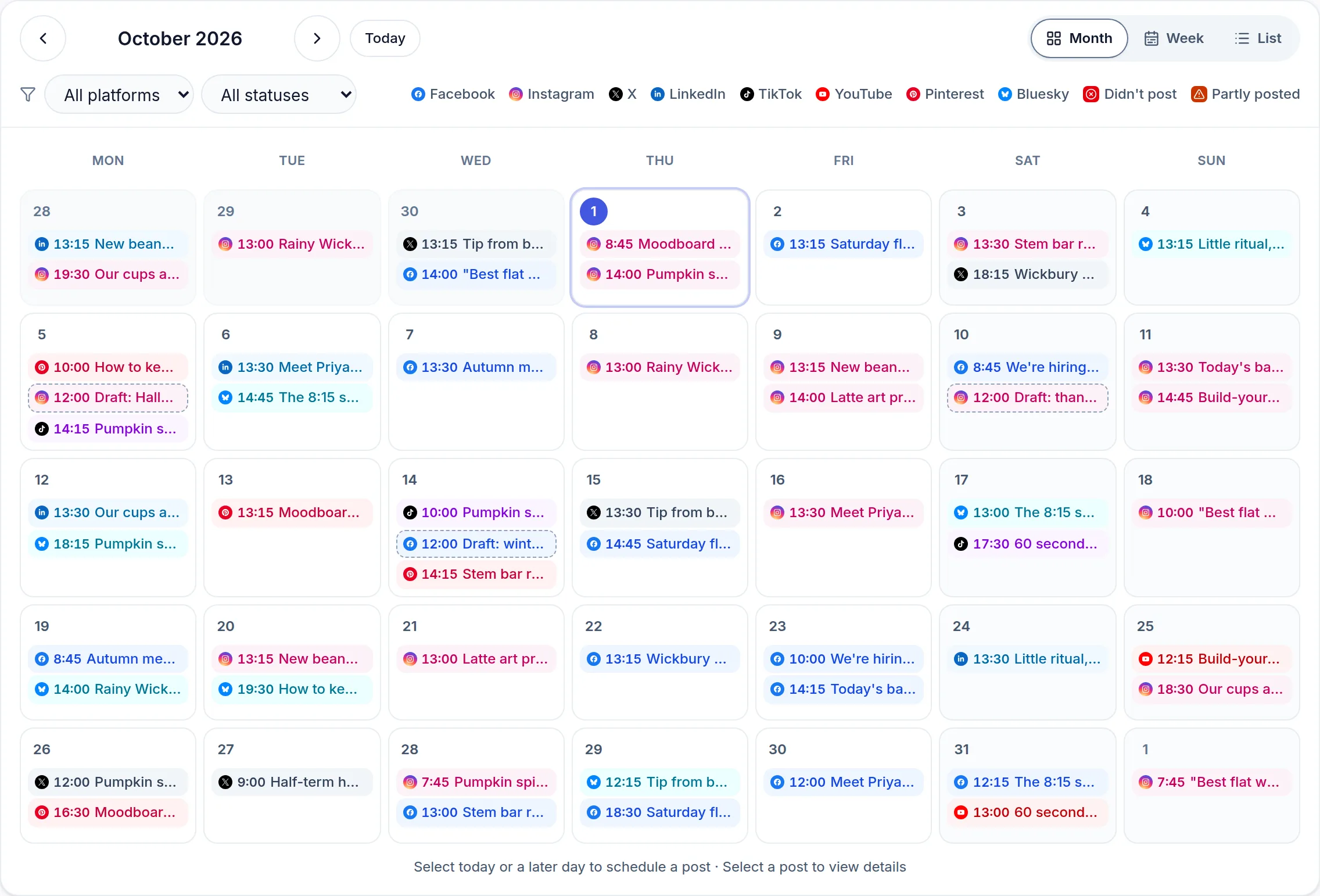
Straight onto your planner
Everything ChatGPT schedules appears on your Optimate calendar beside the posts you made in the app, so you can see the week, drag a post to another day or edit it.
Drafts in your brand voice
ChatGPT reads your Optimate brand profile and top posts first. Save one draft or a whole week of them, or turn one post into a version for each platform.
Branded designs and your photos
Make a graphic in your own logo and colours for 1 credit, or use a photo you've uploaded to Optimate, and attach it to the post in the chat.
Your results and best times
Ask how last month went, or when to post this week, and get answers from your own connected accounts.
Nothing posts without a yes
ChatGPT shows you a preview of each post first and only schedules or publishes it when you confirm. You can disconnect it any time.
Where your ChatGPT posts land
Set it up in a few minutes
- 1
Add Optimate to ChatGPT
Open Optimate in ChatGPT's plugin directory (Settings → Plugins) and click Connect. Sign in to Optimate, or create an account, then click Allow.
- 2
Connect your social accounts
Connect your social accounts in Optimate (Settings → Connections) if you haven't yet. Your assistant can't connect them for you.
Open Connections - 3
Ask for a post
Try 'Using Optimate, schedule a post about Friday's offer to Instagram and Facebook for tomorrow at 9am.'
- 4
Confirm
Check the preview ChatGPT shows you and say yes. The post is scheduled and appears on your Optimate calendar.
Common questions
Can ChatGPT post to Instagram?
Yes, through Optimate. Add the Optimate plugin, connect your Instagram account in Optimate, and ChatGPT can schedule or publish Instagram posts once you confirm them. Instagram needs a photo or video with every post.
Which platforms can ChatGPT post to?
LinkedIn, Instagram, Facebook, X, YouTube, Pinterest, Threads, Google Business, Bluesky and Mastodon, for scheduling and posting straight away. TikTok from an assistant or the API: it asks you who can see each post and whether it's promotional, then schedules it (it can't post a TikTok instantly). It can also save a TikTok draft to finish in Create Post.
Do I need a paid plan?
Reading your connected accounts, analytics, top posts and best posting times works on any plan, including Free. Scheduling, drafts, posting and designs through ChatGPT need Pro, Studio or Agency, and every new account starts with a 14-day free trial, no card needed.
Is it safe to give ChatGPT access?
The plugin uses a standard sign-in, only ever acts on your own Optimate account and never publishes without your confirmation. You can revoke its access at any time from Settings → Automations in Optimate.
What if Optimate isn't in my ChatGPT plugin directory?
Some workspaces hide the directory. Add it by hand: copy your connector URL from Settings → Automations in Optimate, then in ChatGPT open Settings → Plugins → Add custom MCP server, paste the URL, choose OAuth, click Create as a plugin, then Connect.
Does it work in Claude too?
Yes. The same connector is in Claude's connector directory.
Related
Schedule your next post from ChatGPT
Start the 14-day free trial, no card needed, then add Optimate to ChatGPT. Reading your numbers is free; scheduling and posting need Pro, Studio or Agency.