Skip to content
Creating content

Generating content with AI

Turn a topic into on-brand captions, hooks and hashtags for every platform.

Sign in to take a guided tour of the post composer

Give Optimate a topic and it generates a strong caption, alternative versions, hook options and relevant hashtags — tuned to each platform and written in your brand voice.

Stuck for a topic? Tap “Not sure what to post? Suggest ideas” above the topic box, and Optimate suggests a few based on your brand. Pick one and it fills the box for you.
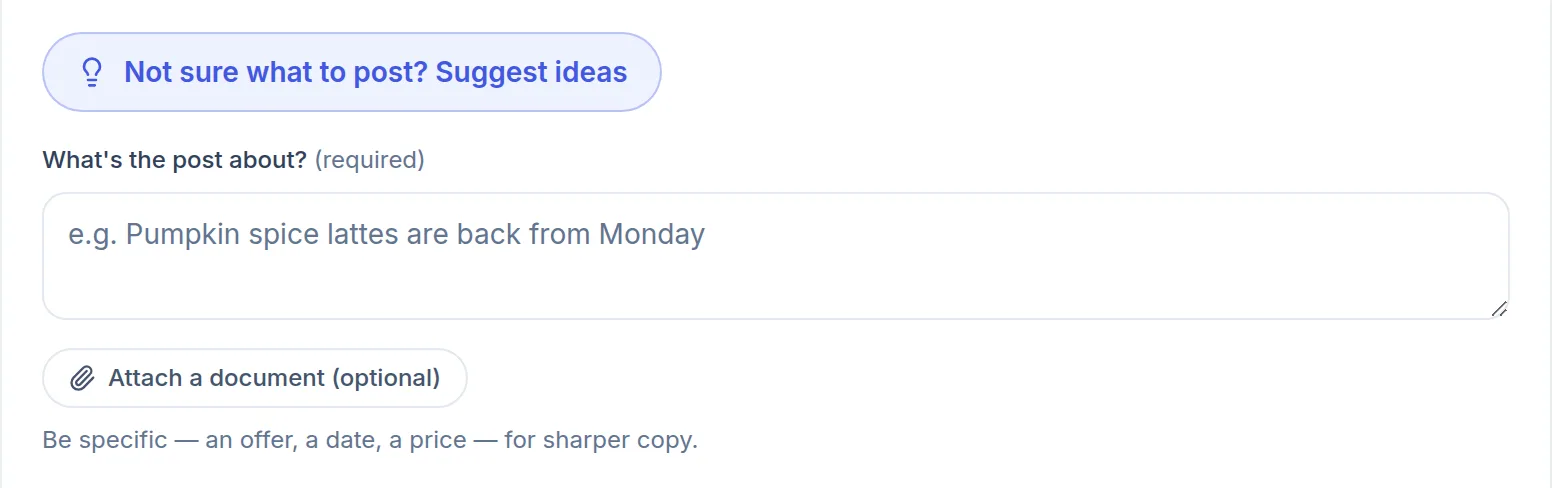
Step 2 of Create Post for a demo café: a blue Not sure what to post? Suggest ideas button above an empty topic box whose example reads Pumpkin spice lattes are back from Monday. (opens the full-size screenshot)
Write your own topic, or ask for ideas.
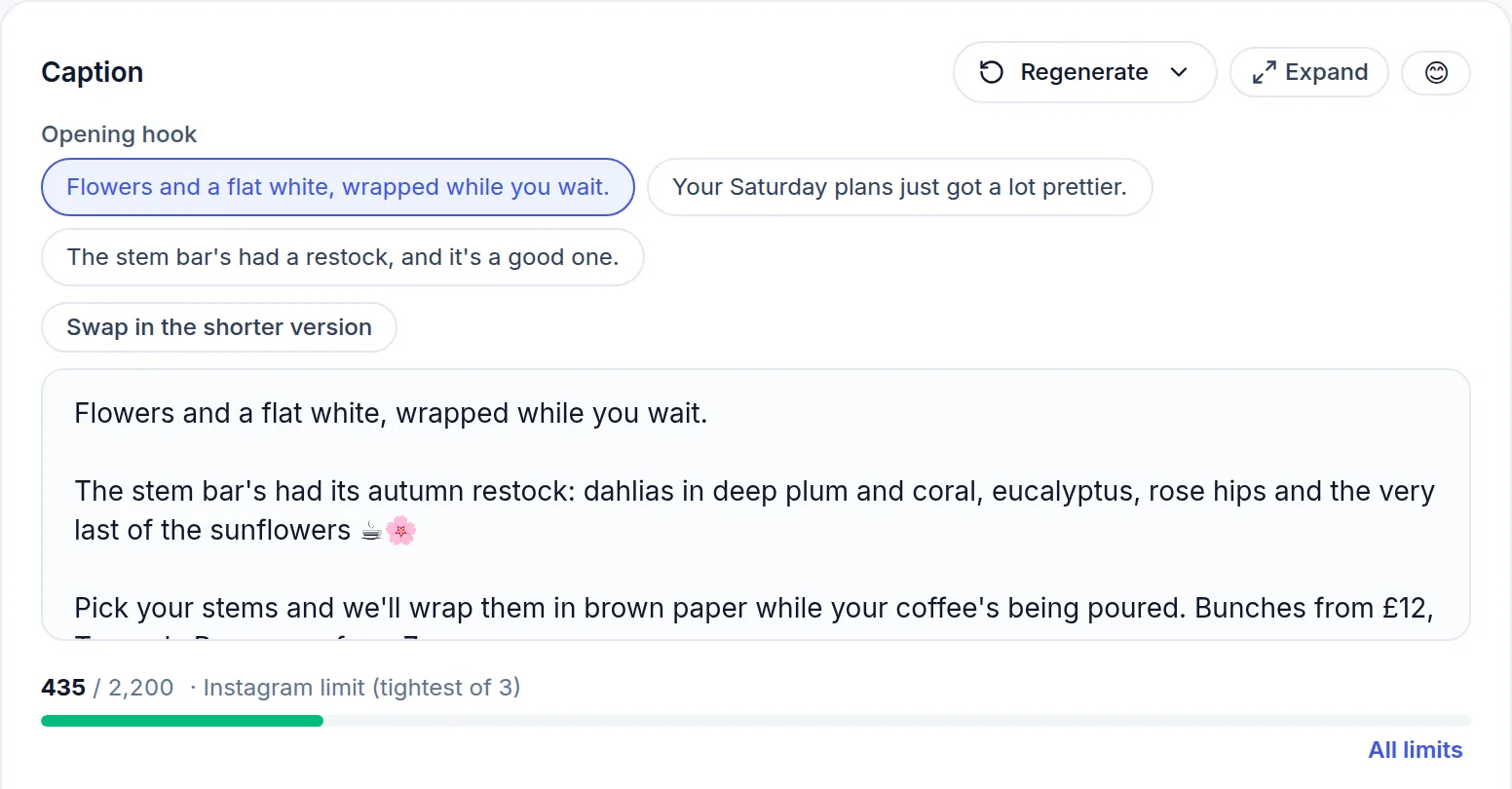
The composer's caption editor for a demo café: three suggested opening lines above a caption about the café's autumn flower restock, with a character count against Instagram's limit. (opens the full-size screenshot)
A caption written from the brand profile, with three opening lines to pick from.

Tips for better output

  • Set your brand voice, audience and keywords on the Brand page first.
  • Be specific with your topic — a clear angle produces a sharper caption.
  • Use the humanising option for a more natural, less 'AI' tone.
  • Generate a few variations and pick the strongest.

Frequently asked

Will it sound like my brand?

Yes — once you set your brand voice, audience and preferred CTAs, every draft respects them. You can also provide example posts as a style reference.

How many AI generations do I get?

Free includes 5 AI text generations to try — images and video are on paid plans. Every paid plan (Pro and above) includes a much larger monthly AI allowance, which grows with the tier.

Was this article helpful?

Related articles

Still stuck? Talk to us

Tell us what you were trying to do and what happened, and someone on the team will reply. We reply to every message.

Think something is down? Check service status