Once your accounts are connected, you can publish straight away or schedule for a future time. Scheduled posts publish automatically at the time you set.
To schedule a post
- Open the composer and write (or generate) your caption.
- Select the platforms and, where relevant, the page or account to post to.
- Add media if the platform needs it (Instagram needs an image; TikTok and YouTube need a video).
- Choose a future date and time, then schedule. Or choose Post now to publish immediately.
You can review, edit or cancel anything that hasn't published yet from your scheduled posts — in the app, or by asking Claude.
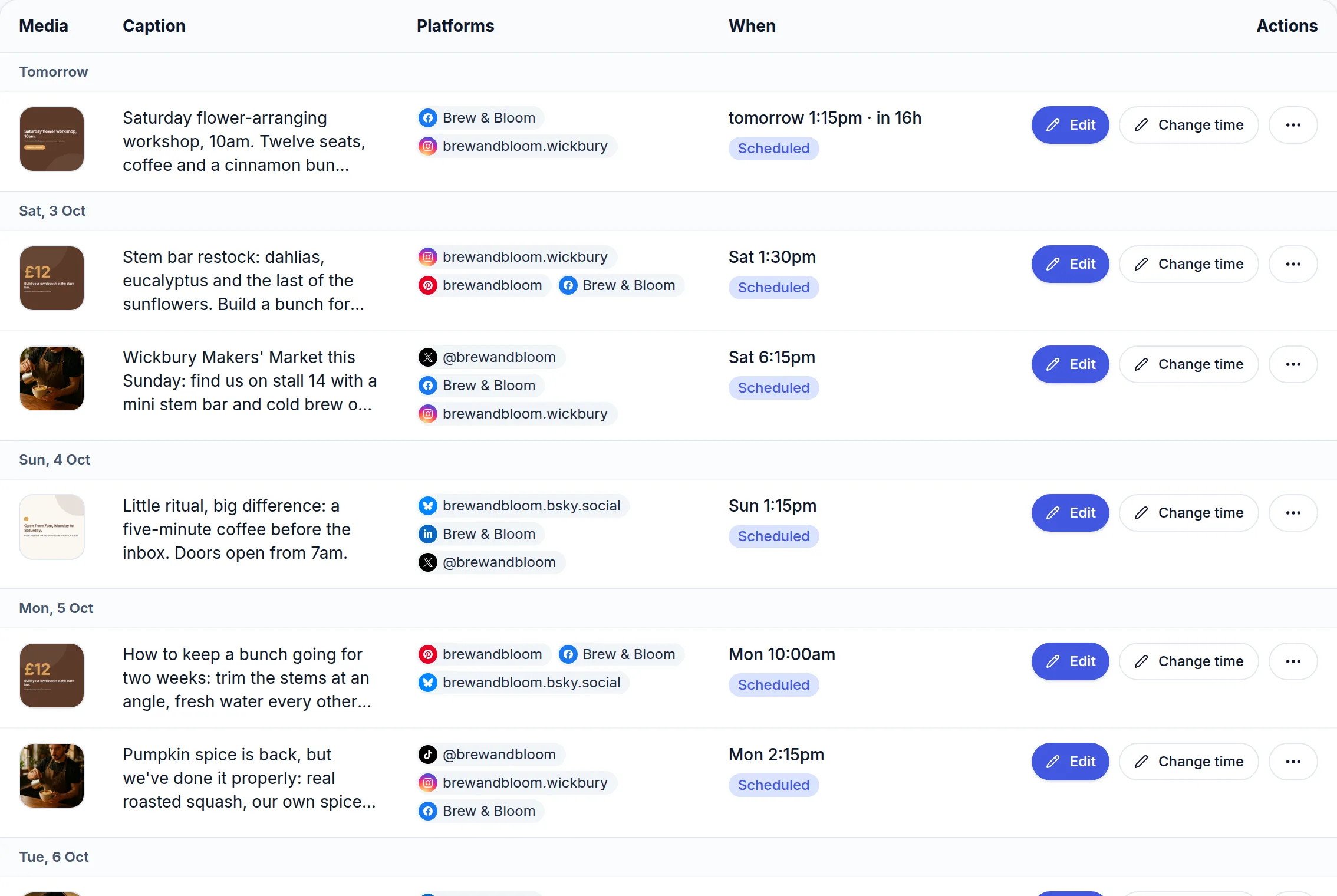 (opens the full-size screenshot)